Above: Aurora Borealis captured in Central Park NYC on an iPhone 13 using the Vibrant Color filter in RitchieCam.
I’m very proud of my iPhone camera app, called RitchieCam. But this last weekend I broke it, and I’m very sorry about that. For some of you, the app stopped working a couple days ago. But now it’s fixed! Let me explain what happened and why.
When Apple introduced the iPhone 16 and iOS 18 a couple of months ago, they included some new features. I wanted to incorporate those into RitchieCam so that you could take advantage of them. Whenever Apple introduces something new, that doesn’t mean that it is easily implemented into third-party apps. Sometimes they exclude it from even being available, and in order to include it one must take unconventional and roundabout paths. The volume button as a shutter release is one example of that: it was only fairly recently that Apple officially supported it for third party apps like RitchieCam, and so (until they did) it was quite crazy the programming necessary to make it work. Some things have been figured out, and some things haven’t. RitchieCam has a very small team working on it in their spare time, yet we’ve been able to do a heck-of-a-lot, all things considered. There’s a lot more that we’d like to do, and are currently working on.
Thankfully and amazingly—and really because of Sahand Nayebaziz, who is an incredibly talented app developer—we were able to get most of the new iPhone 16 and iOS 18 features added to RitchieCam. We finished it up late last week, submitted to Apple for approval, and over the weekend it went live. I was really excited, but then reports began to come in: the app keeps crashing and is unusable. Yikes! I’m very appreciative of all those who reported the problem.
The issue was actually very small, but it was a matter of finding and correcting it. It was related to iOS 17—if you were on iOS 18, you didn’t experience any issues; if you were on iOS 17, simply updating the iOS would clear it up. Some people hadn’t done that yet, and also some people have older devices not capable of updating to iOS 18. Those are the folks who experienced the problem, which essentially rendered the app useless—I apologize for the problem and inconvenience. We figured out the issue, got a new update built, submitted it to Apple, and yesterday afternoon it was approved and made available. If RitchieCam isn’t working on your device, make sure to update it right now.
Above: Various photos captured on an iPhone 13 using the RitchieCam app.
We didn’t find the problem while beta testing because all of our iPhones were updated to iOS 18. There’s a simulator that allows you to test the app on various devices and iOS versions, and it had worked well on it with no problems—the simulator didn’t catch the crash. Once we found an iPhone with iOS 17 to test it on, the problem was immediate and obvious. Figuring out why and resolving it was another issue, but we got it done. It’s now fixed, and RitchieCam should be working just fine for you (if you’ve updated it).
For iOS 18, one cool new feature is launching RitchieCam directly from the Lock Screen. It’s easy to setup, and makes accessing the app much quicker. If you have an iPhone 16, you can use the new Camera Control Button for various functions, such as exposure adjustments. This isn’t a major update, but hopefully these new features will be helpful to some of you. I don’t use RitchieCam for serious work (although people do use their iPhones for such, so it’s certainly possible…), but it’s very convenient for casual images that most likely will be sent in a text or posted to social media. In particular, I like to use it for the 65:24 XPan aspect ratio (something Fujifilm should include in their 40mp X-series cameras). RitchieCam is available for free in the App Store; become a Patron to unlock all of the features and filters, and to support future development.
I just released a brand-new RitchieCam App update! If your iPhone didn’t automatically update the App, be sure to manually do it now. There are two new Filters, plus some improvement and feature changes that I believe you’ll appreciate, but I need to explanation some of it—I think it will all make a lot more sense afterwards.
First, the two new Filters: Slide Film and Negative Film! These are both only available to RitchieCam App Patrons, and are not unlocked in the free version.
Slide Film
Captured with the new Slide Film filter on RitchieCam with an iPhone 13.
The Slide Film Filter is reminiscent of color reversal (slide) film. Vibrant and contrasty—yet still versatile—with a touch of analog nostalgia. Set EV anywhere from 0 to -1 for best results.
Captured with the new Slide Film filter on RitchieCam with an iPhone 13.
Captured with the new Slide Film filter on RitchieCam with an iPhone 13.
Captured with the new Slide Film filter on RitchieCam with an iPhone 13.
Negative Film
Captured with the new Negative Film filter on RitchieCam with an iPhone 13.
The Negative Film Filter is bright, warm, and slightly faded, with some similarities to overexposed color negative film by Kodak. Great for sunny daylight situations. For a more faded and retro rendering, try reducing the EV between -0.6 and -1.3.
Captured with the new Negative Film filter on RitchieCam with an iPhone 13.
Captured with the new Negative Film filter on RitchieCam with an iPhone 13.
Captured with the new Negative Film filter on RitchieCam with an iPhone 13.
Next up is Favorites, which has been significantly revamped. Favorites is a Patron-only feature that improves the way you select Filters. You can Star as few or as many Filters as you’d like (including all of them), and arrange them in whatever order makes the most sense for you—providing you with a customizable experience. Whichever Filter is in the first slot is the one that the App will open with when in the regular view (with the tray of Filters).
One thing that’s new is Favorites will now stay open until you close it—even if you close RitchieCam entirely and relaunch, Favorites will still be open until you close it. The Filters (that you have added to Favorites) are activated by scrolling right or left, and the one in the center is what’s selected for use (if you’re not on iOS 17 or newer, you’ll have to tap to select… this might be a good opportunity to update the operating system). This is a more intuitive way to switch between filters, and makes Favorites quite useful for regular use. If you prefer the Filter tray, which gives you access to all of the filters, including the “i” information icon which provides some samples and a brief explanation, simply tap the Star icon to close Favorites. If you are a Patron, you have two different approaches to how you interact with and select the Filters; however, I anticipate that many of you will use Favorites quite often now, and the regular view less.
Another important note is that long-pressing on the Star icon opens the Favorites menu, which is where you choose the Filters that you wish to Favorite and organize them in whichever order you prefer. This is a quicker way to access the Favorites menu.
The Drag-to-Select Filter option, where you press-and-drag your finger across the screen to quickly scroll through the filters, can now be toggled on-and-off. By default it is set to Off. If you prefer this method, be sure to tap the Gear icon and enable Drag-to-Select Filter. This feature didn’t go away, but you must take this step in order to use it. For those who have had issues inadvertently switching the filter when attempting to tap-to-focus, you might consider leaving it Off.
A couple changes were made to Filter Intensity. First, the icon looks a little different (it’s now three parallel lines, where the top line is longer and the bottom line is shorter). RitchieCam will now remember the Intensity you selected for each Filter (previously, it was a global adjustment). Additionally, the icon gives you visual feedback as to the level of intensity you have selected for that Filter (this is pretty slick, in my opinion).
Last but certainly not least, in the Photos view (where you review the pictures you’ve captured), you can now tap or pinch to zoom in and out. This will make culling a lot easier.
There’s a brand-new RitchieCam update that I’m really excited to share! If your phone didn’t automatically update the App, be sure to do so now!
Probably the biggest headline is that RitchieCam can now take full-resolution 48MP images! If you have a Pro or Pro Max version of an iPhone 14 or 15 (with a 48mp 1x camera), it’s now possible to capture a richly-detailed high-res picture. In order to do this (for those with a compatible device), select the Gear icon, then tap 48MP Capture to enable. By default, 48MP is disabled. When enabled, RitchieCam will save a 48MP JPEG or HEIC (depending on which format you have selected), plus a 48MP RAW file if that is also selected.
While this new option is definitely wonderful, there are some important considerations that must be mentioned. First, 48MP full-res slows down the camera significantly, and especially if you are also saving a RAW file. If you need to be quick, 48MP should probably be disabled. Second, the image is not pixel-binned, which means that dynamic range will be impacted, and high-ISO pictures won’t look as good. If the scene is particularly contrasty and you are concerned about highlight and shadow details, or if it is a dimly lit, you probably want to take advantage of pixel-binning, and get a standard 12MP image instead. Third, 48MP takes up a lot of storage space on your device, so you might want to use 48MP sparingly and thoughtfully.
One example where 48MP makes a lot of sense is when you are shooting in the 65:24 XPan aspect ratio, which cuts out half of the resolution. Cropping out half of 12MP is a bit crippling. It’s plenty of resolution for internet viewing, but prints are limited to 6″x12″, or perhaps 9″x18″ if you’ve got a clean, sharp picture that won’t be viewed too closely (but that’s definitely pushing it). Now, with 48MP, you have a ton of fine details, and can print 18″x36″ if you want. I think the XPan aspect ratio is the big winner with regards to the high-resolution option, but anytime that you think you might want to make a large print of the scene, and the lighting situation allows, you may want to consider enabling 48MP Capture.
RitchieCam App – Vibrant Color Filter – 65:24 – iPhone 13 Pro – 48MP Capture enabled
There are some other great parts to this update. Photos captured with RitchieCam can now be viewed, shared, or deleted straight from the App—this is a first step in a bigger plan, so it’s definitely not finished, but finished enough to include in this update. The HEIC format has been fixed, and is once again available. We found the bug that Apple included in iOS 17, and circumvented it. It was a needle-in-a-haystack situation, but thankfully it was found and fixed, and you can use HEIC instead of JPEG if you’d like. There are also some small efficiency improvements and bug fixes that you’re not likely to notice (but maybe you will). A lot of work went into this update.
We’re not finished, though. A lot of other great features and improvements are being worked on right now, most of which will be for all iPhones (regardless of whether it has 48MP or not). I’m not sure when the next update will be ready, but it shouldn’t be all that far in the future, so stay tuned!
You might or might not have noticed the recent RitchieCam 1.6.1 update. The App Store description states, “Temporarily removed HEIC format on certain operating systems until a future RitchieCam update.” So what’s going on?
There’s a weird bug on iOS 17 that affects RitchieCam. While iOS 17 isn’t officially out yet, the Beta test version is available today. Sometime between two and three weeks from now, Apple will make iOS 17 available to all compatible iPhones (which will be most), and your phone might even automatically update itself to the new operating system overnight as you sleep. It’s uncertain if Apple will fix the bug prior to publicly launching iOS 17 in mid-September.
The weird bug only affects HEIC format, and not JPEG. Photos captured using the HEIC format on RitchieCam display strangely like a double-exposure, as if the picture is offset and enlarged over itself with a 50% opacity. If you share the images (text, airdrop, email) to a non-iOS 17 device (for example, an iPhone with iOS 16, or a computer) it displays normally, but on iOS 17 phones, it displays super weirdly. HEIC images captured with the standard Apple camera app don’t seem to have this issue.
RitchieCam App – Instant Color 1 Filter – iPhone 11
I don’t know what exactly is causing the problem, so I don’t yet know how to fix it. It’s been reported to Apple, so I’m hoping that when iOS 17 is released next month, they’ll have fixed whatever it is that they did to cause this issue, but I have no way to know if they will or not. If not, I hope to get to the bottom of it and have HEIC working properly again soon.
The temporary fix that RitchieCam version 1.6.1 provides is simple: disable HEIC on iPhones that have iOS 17. If your iPhone has iOS 16.6 or older, there’s no change for you. Whatever you have selected, whether HEIC or JPEG, will work as normal. But if you have the iOS 17 Beta, or the public version when it is released soon, RitchieCam will default to JPEG, and HEIC will be unavailable for you to choose. I’m really sorry if this causes any trouble. Hopefully it will be short-lived, and HEIC will be available in the near future for iOS 17.
I also want to say “thank you” to everyone who reported this issue to me. Your feedback allowed this temporary fix to be made available before the new operating system rolled out to the masses. I really appreciate your help!
For those with an iPhone, you can access Fujifilm Film Simulation Recipes right on your wrist! With the latest Fuji X Weekly update for iOS (1.6.0), the App is available for Apple Watch. If your iPhone didn’t automatically update the App, be sure to manually do it now.
Why might you need Film Simulation Recipes on your Apple Watch? First, for some it will be easier to enter a Recipe into your camera with the parameters on your wrist, rather than trying to do it while holding a phone (especially when out in the field). Second, if you left your phone behind (say, in the car), you can still access a particular Recipe if you have an Apple Watch on your wrist—a scenario that actually happened during the process of creating this update. Third, the Random Recipe selector is more readily available, and can make your photo outing even more fun. Fourth, the Fuji X Weekly Apple Watch App has a unique feature.
On the Apple Watch, the Fuji X Weekly App will display the five most recently-viewed Film Simulation Recipes (it will begin tracking this once the App has been updated). If you viewed a particular Recipe, then maybe looked at a couple others, but now want to go back to the first, it’s easy, because the App keeps track of the last five viewed—this is whether the Recipes were opened on the Apple Watch or the iPhone. This is also for the Random Recipe selector, so you could have the Fuji X Weekly App pick (for example) three different Random Recipes to use on a photowalk, and you’ll find all three in the Recently Viewed list on your watch. Cool, right?! This is the new feature that’s only available on the Apple Watch.
If you are a Fuji X Weekly App Patron subscriber, whatever Filtering you have on your iPhone will carry over to the watch App. So if you have (for example) Filter by Fujifilm X-T4 and Filter by Black & White selected, the watch will only display B&W Film Simulation Recipes that are compatible with the X-T4. The Apple Watch mirrors whatever Filter options are currently selected on the phone App. Also, multi-colored Stars for Favorite Recipes behaves the same on the Apple Watch as the iPhone; you cannot add or modify a Star on the watch—only the phone—but it will display the same on the Apple Watch as the iPhone. Oh, and any Custom Recipes you’ve created in the phone App will be displayed in the watch. The best App experience—including the best Apple Watch App experience—is reserved for Patron subscribers!
Any notes that you have added underneath the Film Simulation Recipes on the Fuji X Weekly iPhone App will be displayed in the Apple Watch; you cannot type any notes on the watch App, only on the phone, but you can view the notes you’ve already added.
The Recipes on the Apple Watch are sorted A-Z. Whatever Sort option (Z-A, New-to-Old, etc.) you have selected in the phone App will not carry over to the watch. The logic behind this is that you’re not likely going to use the Apple Watch to browse Film Simulation Recipes, but are most likely seeking a specific Recipe, and it’s probably going to be significantly easier to find when displayed in alphabetical order. For this reason, the watch will only Sort A-Z, and the other options are unavailable.
When you update the Fuji X Weekly App on your iPhone (if your phone didn’t automatically do it), be sure to open the App on your phone first. The Fuji X Weekly App should automatically be added to your Apple Watch, but if not, here’s the fix: open the Apple Watch App, tap My Watch, scroll to Fuji X Weekly, and select Install. If that doesn’t work, ensure that the iOS on your iPhone and Apple Watch are up-to-date. For those on Android phones or with a third-party watch, this update doesn’t affect you, but I am looking into the feasibility of potentially adding that compatibility in the future; however I’m not sure at this time if it will happen, and (if so) when. For those with an iPhone and Apple Watch, I hope that you enjoy this update!
Don’t have the Fuji X Weekly App? Download for free today!
iPhone 11 — RitchieCam — Color Negative — Arches National Park
This year I’ve had the opportunity to visit five different National Parks! I love going to National Parks to experience the wonder of nature. They’re great for photography, and they’re great for the soul. Anytime the opportunity arrises to visit a National Park, I jump at it. In winter, I traveled to Arches National Park in southern Utah, Canyonlands National Park in southern Utah, and Grand Teton National Park in western Wyoming. In spring, I visited Bryce Canyon National Park in southern Utah and Hot Springs National Park in central Arkansas. These are wonderful locations that are worth the effort to experience!
While my main cameras are Fujifilm—such as the X100V and X-E4—I also use my iPhone for photography. Chase Jarvis famously coined, “The best camera is the one that’s with you.” He was specifically stating that if your cellphone is your only option, then it’s the best option; however, I would go a step further and say that your cellphone can be used in conjunction with your main cameras. Why? Your phone might have a different focal length than the lens on your camera (versatility). It’s quicker and easier to share the pictures from your phone (convenience). You don’t have to think about the settings (simplicity). Your phone is more easily portable—you can have it with you when your camera isn’t as practical to bring along (compactness). It doesn’t have to be either your camera or your phone—it can be both, and I used both on my visits to these five National Parks.
Of course, when I photograph with my iPhone, I use my very own RitchieCam App, which is a streamlined camera app with no-edit filters. RitchieCam is intended to help you capture everyday moments—including those that happen while visiting National Parks—more beautifully while maintaining simplicity (anyone can use it, not just photographers). The app is free to download and use—becoming a RitchieCam Patron unlocks the app’s full capabilities. If you have an iPhone, be sure to download RitchieCam today (click here)!
I utilized RitchieCam on my iPhone to photograph these National Parks, and so did others in my family: my wife (Amanda), my daughter (Joy), and my son (Jonathan)—they used RitchieCam, too! While most of the pictures in this article were captured by me, there are a few that they took. After our visits, it’s a lot of fun sharing our photos with each other. We all love going to National Parks, and being able to share the photographic experiences—thanks to RitchieCam—makes it even better.
Arches National Park — Utah
iPhone 11 — RitchieCam — Instant Color 3
If you love unusual rock formations, Arches National Park in southeastern Utah is the place for you! Protruding from the high-desert sand are massive red rocks, which form bluffs, pinnacles, balancing acts, and (of course) arches. There are over 2,000 arches within the National Park, which is the highest concentration of stone arches in the world! Several movies have had scenes filmed in this National Park, including Indiana Jones and the Last Crusade, Thelma and Louise, and Hulk, among others.
Arches National Park is a great place to visit anytime of the year; however, it can be extremely crowded in the summer (not to mention hot), so the winter is my favorite season. It snowed while we were there—a somewhat rare occurrence, although it does happen at least a few days each winter. I loved photographing the park blanketed in white snow, but it melted quickly, and was mostly gone by the end of the day. While we only spent one day in Arches National Park, we made a lifetime of memories there.
iPhone 11 — RitchieCam — Analog Gold
iPhone 7 — RitchieCam — Analog Gold — Photo by Jonathan
iPhone 11 — RitchieCam — Standard Film
iPhone 11 — RitchieCam — B&W Fade
Canyonlands National Park — Utah
iPhone 11 — RitchieCam — Faded Film
The day after our Arches visit, we went to the nearby Canyonlands National Park. While Arches can get packed with people, I’ve never seen a crowd at Canyonlands—I’m sure it happens, but I’ve always found plenty of solitude. The Colorado River goes through both Canyonlands and the Grand Canyon, and they’re both on the Colorado Plateau—both are indeed natural wonders, and there are certainly some similarities between them, yet each offers a unique experience for visitors. Picking a favorite National Park is a difficult and unfair endeavor, but Canyonlands is without a doubt one of my top picks—maybe not number one, but definitely top five.
The reason why Canyonlands was on Day 2 and not Day 1 of our National Parks adventure is because it was closed the day prior due to the snowfall. A dusting of snow in Arches was a blizzard in the Island in the Sky district of Canyonlands, which sits about 6,000′ above sea level, and about 1,000′ higher than the terrain below. Thankfully, by the time we arrived, most of the snow had melted, and we had a fun day hiking, taking in the incredible canyon views that this park offers.
iPhone 11 — RitchieCam — Standard Film
iPhone 11 — RitchieCam — Vibrant Color
iPhone SE — RitchieCam — Analog Color — Photo by Joy
iPhone 11 — RitchieCam — Dramatic B&W
Bryce Canyon National Park — Utah
iPhone 11 — RitchieCam — Standard Film
In southwestern Utah is Bryce Canyon National Park, which is known for its vibrant red hoodoos. While I’ve visited the nearby Zion National Park a couple of times, I had never made it to Bryce Canyon until this last spring. Wow! I was really missing out—Bryce Canyon is absolutely incredible! It’s a National Park that everyone should experience at least once, if they can. While Zion is quite nice, too, if you only have time for one or the other, I would go to Bryce Canyon.
The elevation of the park varies between 6,600′ and 9,100′ depending on where you’re at. Despite “canyon” in its name, Bryce Canyon is technically not a canyon, but a series of natural amphitheaters. To really experience the park you’ll want to put on your hiking shoes; however, don’t expect an easy trail, as the paths are often steep and full of switchbacks. It’s completely worthwhile, though, and, if you are physically able to do it, I highly recommend going down a trail or two while you’re there.
iPhone 13 Pro — RitchieCam — Vibrant Color — Photo by Amanda
iPhone 11 — RitchieCam — Standard Film
iPhone 11 — RitchieCam — B&W Fade
iPhone 11 — RitchieCam — B&W Fade
Grand Teton National Park — Wyoming
iPhone 11 — RitchieCam — Color Negative Low
The Grand Teton National Park in western Wyoming is an amazing sight to behold! I had been once before—in late-spring several years ago—and this was my first winter visit. Unfortunately, the park was much less accessible this time, due to snow. Jackson Hole is a ski destination, so there were lots of tourists, but most of my favorite photography spots (that I was hoping to return to) were closed. I would say that it was disappointing, but when you view the towering range, despite the conditions, it’s impossible to be disappointed—it just made me eager to come again in a different season.
Within Grand Teton National Park are eight peaks that are over 12,000′ above sea level. The location of Ansel Adams’ famous Snake River Overlook picture is well marked and (normally) easily accessible—I had to hike through some knee-deep snow to get to it on this trip. Definitely worth seeing, but perhaps winter isn’t the best time.
iPhone 11 — RitchieCam — Analog Color
iPhone 11 — RitchieCam — Instant Color 1
iPhone 11 — RitchieCam — Instant Color 1
iPhone 11 — RitchieCam — Dramatic B&W
Hot Springs National Park — Arkansas
iPhone 11 — RitchieCam — B&W Fade
Perhaps the strangest National Park I’ve ever experienced is Hot Springs National Park. Located in downtown Hot Springs, Arkansas, this park is free to visit (although the observation tower has a fee to access), but there’s not much to see. You can self-tour one of the bathhouses (which is now the visitors center). There are a couple of rather-ordinary springs that you can view—unfortunately, most of the springs are oddly capped with metal encasements. There are some trails that twist up a hill (along with a road), and at the top is a tower, which offers breathtaking views of the southern Ozarks. None of it comes close to the grandness that I have come to expect from National Parks, or even many state parks.
I was surprised by the beauty of this region. I liked Hot Springs. The National Park was a good place to spend a few hours. But I left wondering why in the world this was a National Park, because it doesn’t seem like it should be. It’s worth visiting if you’re in the area (and the area is worth visiting), but I wouldn’t make a special trip just to see Hot Springs National Park. Still, we had a good time, and made some family memories, and that’s what really matters.
iPhone 13 Pro — RitchieCam — Sunny Day — Photo by Amanda
iPhone 13 Pro — RitchieCam — Sunny Day — Photo by Amanda
iPhone 13 Pro — RitchieCam — Instant Color 1 — Photo by Amanda
iPhone 11 — RitchieCam — B&W Fade
There are 63 National Parks in America, and someday I hope to visit them all. It will take years—probably a lifetime! Five in one year is a good lot, and maybe the opportunity will arise to visit even more before January rolls around. I hope so. And if I do, not only will I bring my Fujifilm cameras, but my iPhone, too.
I just released RitchieCam update 1.2.0! If you have RitchieCam on your iPhone and it didn’t update automatically, be sure to manually do it right now. If you have an iPhone but don’t have RitchieCam, go to the Apple App Store and download it today!
For those who don’t know, RitchieCam is an easy-to-use streamlined camera app intended to bring one-step photography to the iPhone. There are 18 analog-inspired filters so that you don’t have to edit your mobile pictures if you don’t want to. It is intended to be simple enough to be useful for anyone and everyone with an iPhone, and robust enough that even seasoned photographers should find it satisfying. Visit RitchieCam.com to learn more. Also, be sure to follow RitchieCam on Instagram!
What’s new in this update? There are three new features: drag to switch filters, 65:24 aspect ratio, and straight-down level indicator. Each one of these is discussed in detail below. There are also several small improvements and refinements, which will mostly go unnoticed—the most obvious is the enlarged EV +/- switch, hopefully improving its ease of use. Many other features and improvements are in the works, but it takes time to bring them to fruition, so be patient if this update doesn’t include what you were hoping it would—for certain, many great things are coming down the road.
Let’s take a look at the three new features!
Drag to Switch Filters
There’s a new way to select your desired RitchieCam filter even faster—simply drag your finger across the viewfinder! If you are a RitchieCam Patron, far-left is Standard Color, far-right is Dramatic B&W, and the 16 other filters are in-between; otherwise, left is Standard Color, middle is Analog Color, and right is B&W Negative. This is a quick and fun way to get to whichever filter you want to use, or to see which filter might be the best fit for the scene.
The video above is a screen-recording I made using this new feature. Just picture a finger dragging across the screen, left-to-right. I was trying to be slow and smooth, but this is a snappy function, so it is as quick as you are—you are in control of how fast or slowly you swipe through the filter options.
Drag-to-switch is a new way to find and select filters, but the previous methods still work as they always have. I think a lot of you will prefer this new method, but it is completely optional, so nothing changes for you if you like your current process; however, if you ever wished that there was a quicker way to switch filters, now there is!
65:24 XPan Aspect Ratio
Analog Color Filter — XPan 65:24 Aspect Ratio
The 65:24 aspect ratio was made popular by XPan cameras, a joint venture between Fujifilm and Hasselblad. I received a lot of requests for this aspect ratio, so I am happy to announce that it is now an option on RitchieCam! You can capture panoramic pictures straight from RitchieCam, no cropping required.
Currently there are six aspect ratios to choose from: 4:3/3:4, 5:4/4:5, 1:1, 3:2/2:3, 16:9/9:16, & 65:24/24:65. The panoramic 65:24 ratio can be challenging to use, but also highly rewarding, producing cinematic feelings that are only possible by going wide—give the XPan ratio a try today!
Dramatic B&W Filter — Xpan 65:24 Aspect Ratio
Level Indicator for Straight-Down Photography
If you ever do product photography that requires you to shoot straight down, it can be difficult to get the camera level. I’m always off by a little, tilted slightly one way or another. But RitchieCam is here to help!
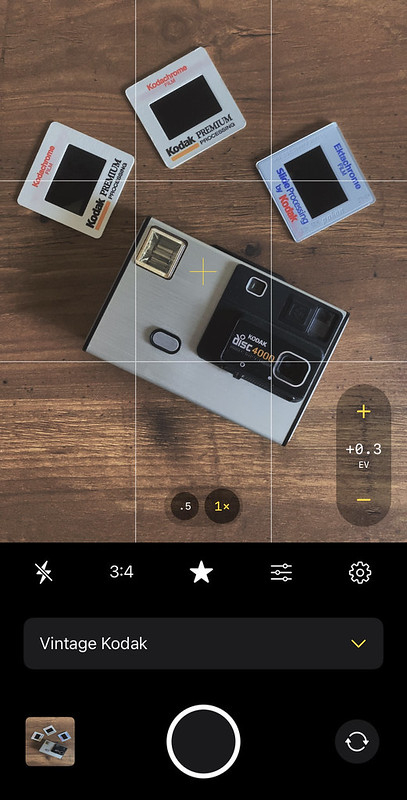
Now, when the phone is flat (parallel to the ground), the gyroscope activates a white and yellow plus that, when aligned (indicated by the yellow plus as the only one visible), lets you know that the phone is level, not tilted in any direction. This feature is always on, so anytime the phone is flat when using RitchieCam, the pluses will appear. Some of you might not ever use this, but for some of you this is a really big deal.
As Chase Jarvis coined, the best camera is the one that’s with you—sometimes that’s your cellphone. Whenever I use my iPhone for photography, I always use my very own camera app: RitchieCam. Designed with a one-step philosophy, RitchieCam produces photos that are ready to be shared or printed the instant that they’re captured.
I partnered with Sahand Nayebaziz to develop RitchieCam. I worked with Sahand on the Fuji X Weekly and Ricoh Recipes Apps, so we already had established a great working relationship even before beginning work on this camera app. Sahand uses Fujifilm cameras, and sometimes his iPhone, for his photography.
Sahand and I were talking recently when he mentioned that his favorite RitchieCam filter is Instant Color 3 set to about 30% intensity. I have always used 100% intensity. Even though I put this feature into the app, I had never used it personally, other than testing it out when it was being developed. I thought that some would appreciate it, so it was important to include it.
The three-slider icon (between the star and gear) opens the Filter Intensity slider. All the way right is 100% and all the way left is 0%. I like to use 100% on all of the filters, but that’s to be expected because I created the filters. You might prefer something different, so you can customize the intensity to fit your tastes.
I thought that there’s some potential for creativity with this feature, so I began to experiment with it. First I tried Sahand’s suggestion of Instant Color 3 at 30%, which did in fact produce good results (see the picture at the top of this article). Then I played around with the other filters at various intensities.
B&W Fade Filter set to 70% intensity
I found the three black-and-white filters in particular can produce interesting results, because they become muted-color filters when set to about 70% intensity. Of the three monochrome options, my favorite filter to adjust the intensity of in order to create color pictures is Dramatic B&W. Set to about 70%, the Dramatic B&W filter makes for wonderful muted-color photography. I was actually very impressed with this, and spent a couple of days shooting the Dramatic B&W filter set to about 70% intensity.
Here are some examples:
Dramatic B&W Filter set to 70% intensity
Dramatic B&W Filter set to 70% intensity
Dramatic B&W Filter set to 70% intensity
Dramatic B&W Filter set to 70% intensity
Dramatic B&W Filter set to 70% intensity
The RitchieCam App has 18 filters (15 color and 3 B&W), but the potential aesthetics that can be achieved using RitchieCam is much greater because you can adjust the intensity of each filter, and that adjustment changes the look—at least a little, and sometimes a lot—which gives you even greater creative control over your pictures.
If you have an iPhone and you haven’t downloaded the RitchieCam App, go to the Apple App Store right now and do so! Then play around with the Filter Intensity slider and see what fun things you come up with. Let me know which filter is your favorite, and what intensity you use. If you find something especially interesting, I’d love to try it myself.
Leigh & Raymond Photography (formally known as The Snap Chick) dropped a video with a wonderful shoutout to my RitchieCam iPhone camera App! You’ll find the video above—RitchieCam is mentioned at about the 11-minute mark. Wow! Really, wow! I’m speechless. Thank you, Leigh and Raymond, for your kindness and support!
For those who don’t know, RitchieCam is an easy-to-use streamlined camera app intended to bring one-step photography to the iPhone. There are 18 analog-inspired filters so that you don’t have to edit your mobile pictures if you don’t want to. It is intended to be simple enough to be useful for anyone and everyone with an iPhone, although it is robust enough that even seasoned photographers should find it satisfying. Visit RitchieCam.com to learn more. Also, be sure to follow RitchieCam on Instagram!
I just released the first “major” RitchieCam app update. For those who don’t know, I created an iOS camera app to simplify and streamline your iPhone photography. The app is free, and is intended to be a useful free tool, yet becoming a RitchieCam Patron unlocks all of the filters and the best app experience.
There are a lot of features that I want to incorporate into the app, but it takes time and work to implement them all, so they will roll out over time. In other words, RitchieCam is just going to get better and better! I just released the first significant update—if you have RitchieCam on your phone and it didn’t automatically update, be sure to manually do it in the App Store now.
One new feature is the volume button—either up or down—as a shutter release. Depending on how you hold your phone, this is a more convenient way to take pictures. Instead of tapping the circle shutter at the bottom, you can press either volume up or volume down to accomplish the same thing. The ability to use the volume buttons to capture photographs was highly requested, so I’m pleased to be able to include it in this update.
Another new feature is additional aspect ratios. Originally, all RitchieCam photos were in iPhone’s standard 4:3 aspect ratio, which is necessary if you want to use the full resolution of the sensor. But if you prefer a different shape, there are now five aspect ratios to choose from: 4:3, 3:2, 5:4, 1:1, & 16:9.
Here are some photos, all captured using the Standard Film filter on RitchieCam, illustrating the different aspect ratios:
4:3 / 3:4
3:2 / 2:3
5:4 / 4:5
1:1
16:9 / 9:16
RitchieCam saves the pictures in Apple’s High Efficiency Image Container (HEIC, also called HEIF) format, which maximizes image quality while simultaneously taking less space on your phone. It’s also necessary for implementing some new features down the road. The downside to HEIC is that it is less universally compatible with non-Apple programs. For those who prefer JPEG over HEIC, you now have that option—tap the Gear icon, and you’ll find the Format toggle about halfway down.
The other improvements are less obvious. RitchieCam will now remember the last Flash and EV settings used (as well as the aspect ratio), which will hopefully improve the user experience for some of you. There are several behind-the-scenes optimizations to improve speed, stability, and quality, which you’re not likely to notice, but micro improvements add up over time, so they’re important to continuously work on.
And that’s the update! Already work has begun on the next one. If the feature you were hoping for isn’t in this one, with any luck you won’t have to wait too long for it, but I do ask for your patience, because these things do take awhile. In the meantime, I hope there’s something in this update that you find helpful to you.
Sun Behind The Tetons – Grand Teton NP, WY – Fujifilm X100V – “Elite Chrome 200“
Sun Behind Tetons & River – Grand Teton NP, WY – iPhone 11 – RitchieCam – “Color Negative Low”
I recently visited the Grand Teton National Park in Wyoming. This iconic mountain range sits just north of the tourist town of Jackson Hole. If you’ve never been, this is a “bucket list” kind of place that you should absolutely try to see in person if you can. My visit was a quick weekend getaway, and not surprisingly the weather didn’t really cooperate. Still, I wanted to get in some photography, and so I did.
What I don’t want to do is view massive crops side-by-side. The Fujifilm X100V and the iPhone are much different tools, so this will be a very general overview without pixel-peeping.
Technically speaking, the X100V is far superior, and it isn’t even close. For technical image quality, the X100V is the camera to grab, but the iPhone, with its tiny little sensor, is surprisingly good, all things considered. The advantage of the iPhone is that you have it with you all of the time, and you can quickly and easily share the pictures captured with it across the world (especially if you used the RitchieCam app). Convenience and speed are the reasons to choose the iPhone over the X100V, but the X100V is pretty compact and quick, too. For printing or viewing large, the X100V is the right tool. For quick sharing, the iPhone is the right tool. Here’s the great news: you don’t have to choose—use both, or use the one that you happen to have with you.
This is the first in a series of articles where I’ll compare photographs captured with the Fujifilm X100V using Film Simulation Recipes and the iPhone using the RitchieCam app. Below are photographs captured with these cameras at the Grand Tetons in Wyoming. Let me know in the comments which pictures you like best!
Fujifilm X100V
Snake River Overlook Morning – Grand Teton NP, WY – Fujifilm X100V – “The Rockwell“
What is RitchieCam? It’s an easy-to-use streamlined camera intended to bring one-step photography to the iPhone. You’ll find 17 analog-inspired filters so that you don’t have to edit your mobile pictures if you don’t want to. I think you will appreciate the app, yet it is intended for anyone and everyone with an iPhone, and not just photographers. You can read all about it at ritchiecam.com.
This is a project I’ve been secretly working on for nearly a year. While I always thought it would be difficult and complicated, I had no idea just how much so! I’m extremely happy with how it turned out, yet I hope that this is just the beginning, as there are several new features and improvements already in the works, and even more on my wish-list. I’m very proud of RitchieCam, and I hope that you find it fun and useful. I personally have enjoyed using it over the last several weeks, including on a road trip to Moab, Utah.
RitchieCam is free! Or, really, it’s a “freemium” app, and for $9.99 (USD +Tax annually) you can unlock all of the filters and features.
Some pictures I captured with RitchieCam on that Moab road trip: